100% Open SourceTally DataTallyPrime VersionTallyMCPClaude AIData MigrationAudit TrailTally MCP Server Claude
How to Know Tally Version from Data Using TallyMCP.pro
A comprehensive guide to identifying which Tally version created an accounting data folder. Compare data folder files (Company.900, Data.tsf), inspect XML headers, and query version compatibility safely with TallyMCP.pro and Claude.
T
TallyMCP Engineering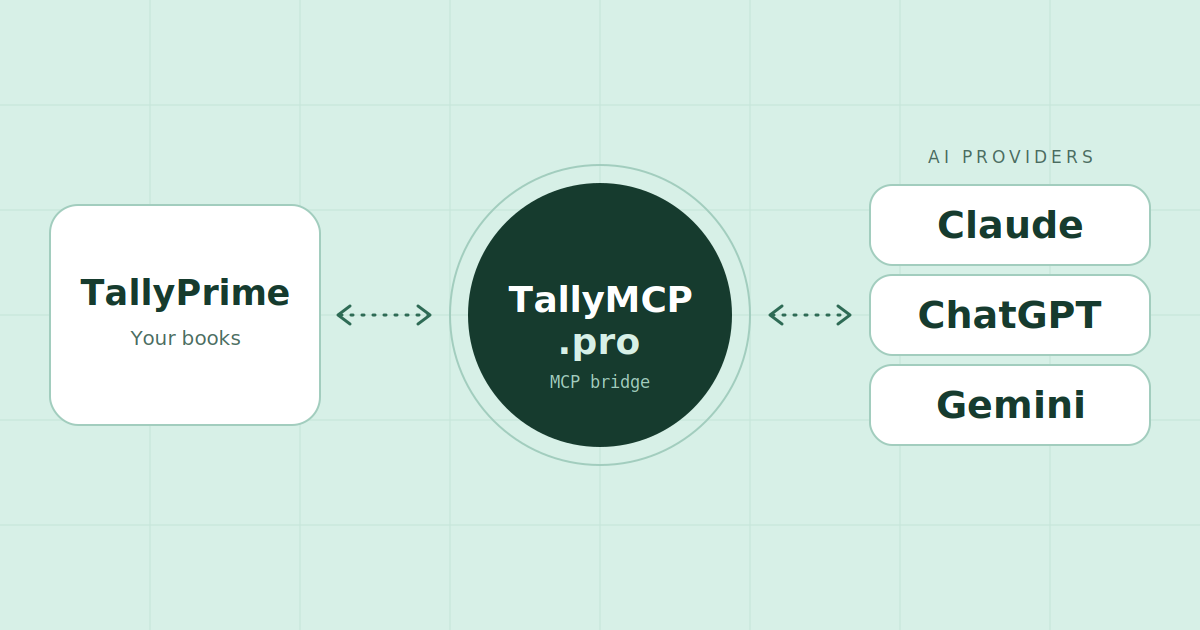
Quick Answer: To know which Tally version your data was created with without risking accidental schema corruption, connect Claude Desktop to your Tally instance using the open-source TallyMCP.pro server and run:
"Claude, inspect the active company and show me the exact Tally version, build number, schema release, and Edit Log status."
Claude calls the read-only
tally_get_environmenttool over local loopback (127.0.0.1:9000) and returns the exact release (e.g., TallyPrime 7.2, TallyPrime Edit Log, or Tally.ERP 9) with zero data alteration.
Why Identifying Tally Version from Data is Critical
Every chartered accountant, auditor, and financial controller has faced this scenario: a client hands over a USB drive or a zipped archive containing a 5-digit folder like 10000 or 10005.
Opening that folder carelessly in an arbitrary Tally installation is risky:
- Irreversible Database Migration: Opening a dataset created in an earlier release (such as Tally.ERP 9 or TallyPrime 1.0) in a modern release (like TallyPrime 3.0+ or 7.x) prompts an automatic migration. Once converted to the multi-GSTIN schema, you cannot roll back without a prior backup.
- MCA Audit Trail (Edit Log) Compliance Violations: Under the Ministry of Corporate Affairs (MCA) mandate for Indian companies, businesses must maintain an unalterable Edit Log. Migrating data across non-Edit Log and Edit Log variants can trigger compliance audit flags if audit trail logging is disrupted.
- Schema Corruption from Downgrades: Attempting to force an older version of Tally to open files written by a newer release can corrupt master index tables (
Company.900orManager.900).
Here is the complete engineering breakdown of how to inspect, determine, and verify Tally versions from data—both conversationally using TallyMCP and manually via file signatures.
Method 1: The AI-Powered Inspection via TallyMCP.pro & Claude Desktop (Recommended)
The safest, fastest way to determine Tally release compatibility is through the tally mcp server claude integration. Because TallyMCP runs natively on your machine over standard I/O (stdio), it accesses Tally's local XML gateway without opening raw database files directly.
Step 1: Install TallyMCP in Claude Desktop
You can install TallyMCP using the one-click .mcpb extension or CLI:
- One-Click Extension: Download tally-mcp-1.0.1.mcpb and load it into Claude Desktop via Settings ▸ Extensions ▸ Advance Settings ▸ Install Extension.
- CLI Setup: Run
tally-mcp setupin PowerShell or bash.
Step 2: Ensure Tally Connectivity
Make sure Tally is open on your PC with XML connectivity enabled on port 9000 (Help ▸ Settings ▸ Connectivity ▸ Both ▸ Port 9000). Verify with:
tally-mcp doctor
Step 3: Prompt Claude in Natural Language
In Claude Desktop, ask:
Check the current Tally version and company environment. Is Edit Log enabled?
Claude executes the built-in MCP tool tally_get_environment:
{
  "name": "tally_get_environment",
  "arguments": {}
}
TallyMCP queries Tally's system formulas and returns structured telemetry:
{
  "ok": 1,
  "tally_version": "TallyPrime 7.2",
  "connected": true,
  "active_company": "Acme Industries Pvt Ltd",
  "edit_log_enabled": true,
  "server_version": "1.0.1",
  "tested_versions": ["TallyPrime 7.2", "TallyPrime 6.x"],
  "docs_url": "https://www.tallymcp.pro/docs/versions"
}
Why this is safer than manual file opening:
- 100% Non-Mutating: Read-only queries cannot trigger migration prompts.
- Reports Edit Log State: Instantly confirms whether MCA audit trails are active.
- Accurate Build Reporting: Identifies point releases (e.g., Release 3.0.1 vs Release 4.1).
Method 2: Inspecting Data Directory Files & Byte Signatures
If Tally is not running or you only have raw files on disk, you can inspect the files inside the company directory (e.g., C:\TallyPrime\Data\10000\).
C:\TallyPrime\Data\10000\
├── Company.900        <-- Main company master index & header
├── Manager.900        <-- Security, user roles, encryption
├── Data.tsf           <-- TallyPrime 3.0+ Transaction Snapshot Format
├── Trans.900          <-- Voucher transaction records
├── Migration.log      <-- Generated during schema upgrades
└── Tally.ini          <-- Local configuration overrides
Key File Indicators by Release:
| File Present | Release Indicator | Technical Significance |
|---|---|---|
Data.tsf | TallyPrime 3.0+ to 7.x | Multi-GSTIN transaction snapshot architecture. Not present in Tally.ERP 9 or TallyPrime 1.x/2.x. |
Trans.900 without Data.tsf | Tally.ERP 9 or TallyPrime 1.0–2.1 | Legacy transaction file structure. Opening in Release 3+ requires migration. |
Migration.log | Upgraded Company | Text file generated by Tally recording the previous release build, migration timestamp, and master re-indexing. |
Addvouch.900 / History.900 | TallyPrime Edit Log | Audit trail delta tracking files storing voucher alteration timestamps and user GUIDs. |
Reading Migration.log (If Available)
If the data was ever migrated, a plain-text file named Migration.log resides directly inside the company folder. Open it in Notepad or PowerShell:
Get-Content -Path "C:\TallyPrime\Data\10000\Migration.log" -Head 15
You will see output identifying the source and target builds:
[Migration Started: 14-Aug-2024 16:32:10]
Source Version: Tally.ERP 9 Release 6.6.3
Target Version: TallyPrime Release 3.0.1
Company Number: 10000 (Acme Industries Pvt Ltd)
Re-indexing Masters: OK
Rebuilding GST Registrations: OK
Migration Completed Successfully.
Method 3: Direct XML / TDL System Functions Query
If you prefer programmatic inspection via scripts or curl, Tally exposes internal system formulas over port 9000. You can request $$SysInfo variables without starting a full UI session.
The XML Request Envelope
Send this raw XML envelope via curl to http://127.0.0.1:9000:
<ENVELOPE>
  <HEADER>
    <VERSION>1</VERSION>
    <TALLYREQUEST>Export</TALLYREQUEST>
    <TYPE>Data</TYPE>
    <ID>SystemInfoReport</ID>
  </HEADER>
  <BODY>
    <DESC>
      <STATICVARIABLES>
        <SVEXPORTFORMAT>$$SysName:XML</SVEXPORTFORMAT>
      </STATICVARIABLES>
      <TDL>
        <TDLMESSAGE>
          <REPORT NAME="SystemInfoReport">
            <FORMS>SystemInfoForm</FORMS>
          </REPORT>
          <FORM NAME="SystemInfoForm">
            <PARTS>SystemInfoPart</PARTS>
          </FORM>
          <PART NAME="SystemInfoPart">
            <LINES>SystemInfoLine</LINES>
          </PART>
          <LINE NAME="SystemInfoLine">
            <FIELDS>SysVerField, SysRelField, SysAppField</FIELDS>
          </LINE>
          <FIELD NAME="SysVerField">
            <SET>$$SysInfo:TallyVersion</SET>
          </FIELD>
          <FIELD NAME="SysRelField">
            <SET>$$SysInfo:Release</SET>
          </FIELD>
          <FIELD NAME="SysAppField">
            <SET>$$SysInfo:ApplicationVersion</SET>
          </FIELD>
        </TDLMESSAGE>
      </TDL>
    </DESC>
  </BODY>
</ENVELOPE>
Tally replies with the exact installed binary release, build integer, and sub-release architecture.
Understanding Tally Version Evolution & Compatibility
To make sense of the version numbers, refer to this milestone overview:
1. TallyPrime Release 7.x (Current Stable)
- Supports modern REST/XML endpoints and native AI Model Context Protocol integrations.
- Full real-time GSTR-2B JSON reconciliation integration.
- Advanced automated bank statement reconciliation.
2. TallyPrime Release 3.0 / 4.0 / 5.0 / 6.0
- Introduced the radical Multi-GSTIN Architecture: single company data folder can maintain multiple state GSTIN registrations.
- Stored in
Data.tsf. Cannot be downgraded to Release 2.x or 1.x without restoring pre-migration backups.
3. TallyPrime Edit Log (Release 2.1+)
- Designed specifically for MCA mandatory compliance.
- Unalterable edit history for every ledger, voucher, and master alteration.
- Prevents turning off the audit trail once initiated.
4. Legacy Tally.ERP 9 (Series A, Releases 1.0 to 6.6.3)
- Pure 5-digit folders (
10000). - Single GSTIN per company.
- Requires full data migration before working with modern AI agents or automated tax filing pipelines.
Summary Checklist Before Opening Unknown Tally Data
Before opening any client or archived data folder:
- Take a Cold Backup: Copy the entire
10000folder to a separate drive or zip archive. - Inspect with TallyMCP & Claude Desktop: Use
tally_get_environmentto inspect without triggering writes. - Check for
Data.tsf: Presence ofData.tsfmeans you must use TallyPrime Release 3.0 or higher. - Verify Edit Log Requirements: Confirm whether the client is a registered company requiring Edit Log compliance.
By leveraging TallyMCP.pro, you can inspect, verify, and interact with your TallyPrime books safely, conversationally, and with 100% data integrity.
Back to all articles
TallyMCP is 100% open-source. Talk to your TallyPrime books like you talk to your accountant.GitHub